
Every bike in a status. When it stops, you know why.
From drop-off to collection, the same steps for the whole team. On hold, the work order says what is missing and how long the bike has been waiting.
Username demo.gestor, the password is the same.
Your workshop’s statuses.
This is the path every bike takes. The arrows are the buttons on the work order, so nobody has to memorise anything. On the phone, tap a status to see what it is and when to use it.
- ReceivedThe bike is in. The work order opens from the number plate, with the mileage from the last visit.
- DiagnosingSomeone is finding out what the bike needs. From here it goes to repair or on hold.
- On holdThe bike is stopped, waiting for something, and the work order says what.
- RepairingHands on: tasks, parts and hours, with the name of who did them.
- CompletedIt’s ready. The manager checks it, lets the customer know and hands it over.
- DeliveredThe bike has left and the work order stays in its history.
- CancelledWith the reason recorded. If it was a mistake, the manager reopens it.
On hold: time stopped is no longer a mystery.
A stopped bike takes up space and delays the hand-over. With the reason on the work order, the whole workshop knows what it is waiting for, and the manager sees for how long.
The reason is required
"Put on hold…" always asks what is missing: parts, customer approval, the customer, supplier or other. If it is parts, tick the missing ones; a part from the catalogue goes straight onto the order, with − and + for the quantity.
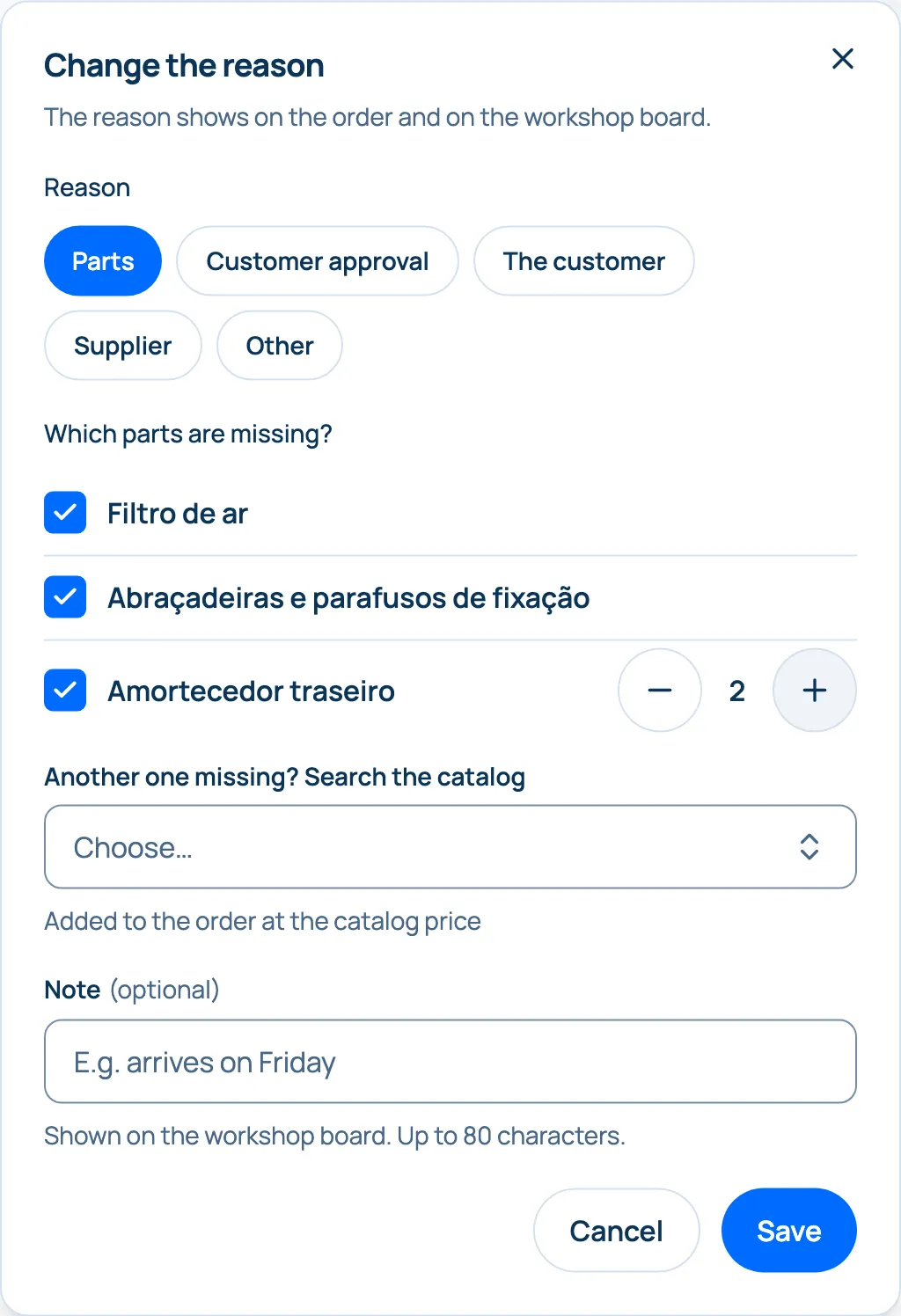
Missing parts sit on their own line
"Missing" in red and "Arrived" one tap away. When the last one arrives, the bike goes back to repair by itself; move it on earlier and the rest are marked as arrived.
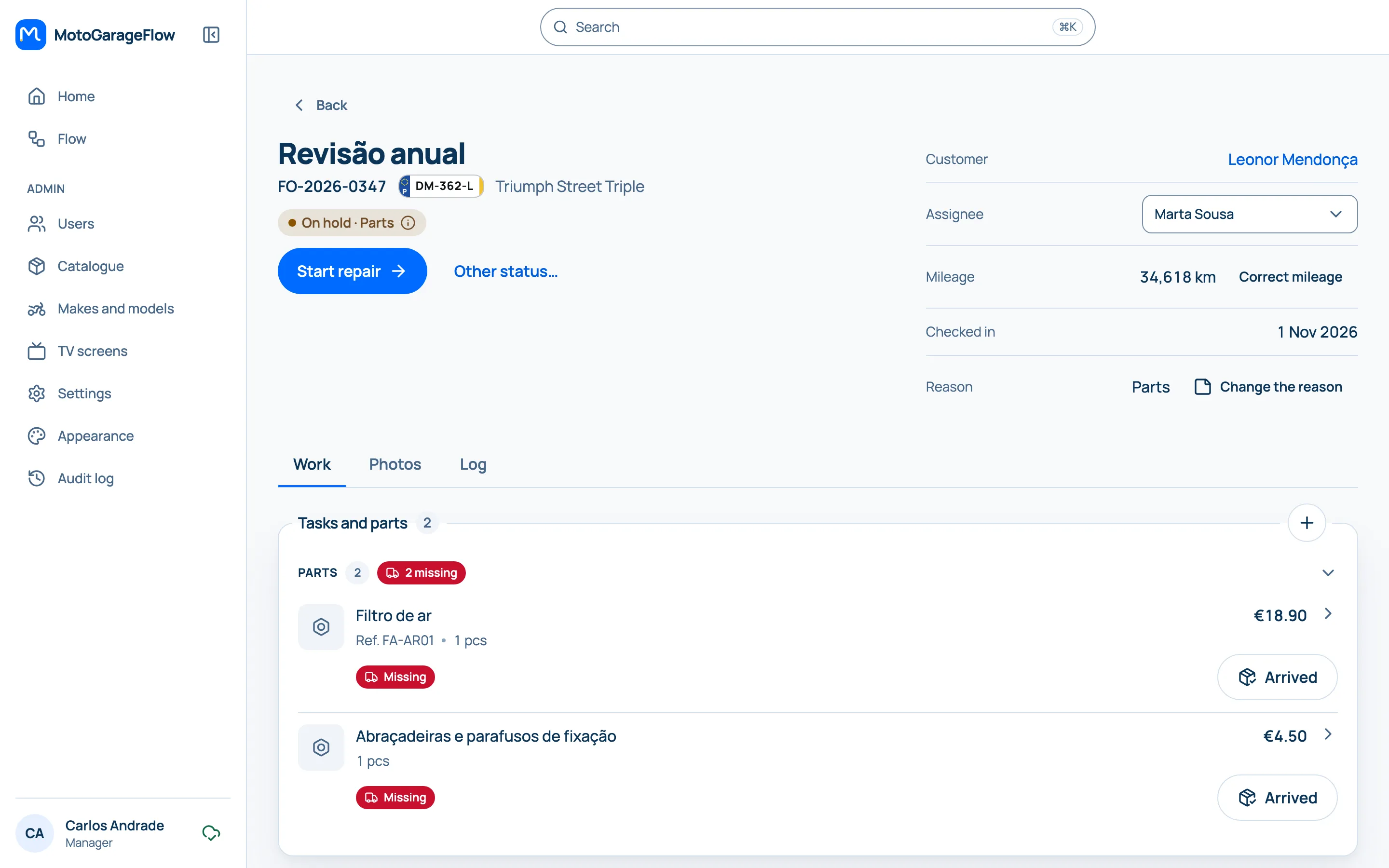
The reason in plain sight, across the workshop
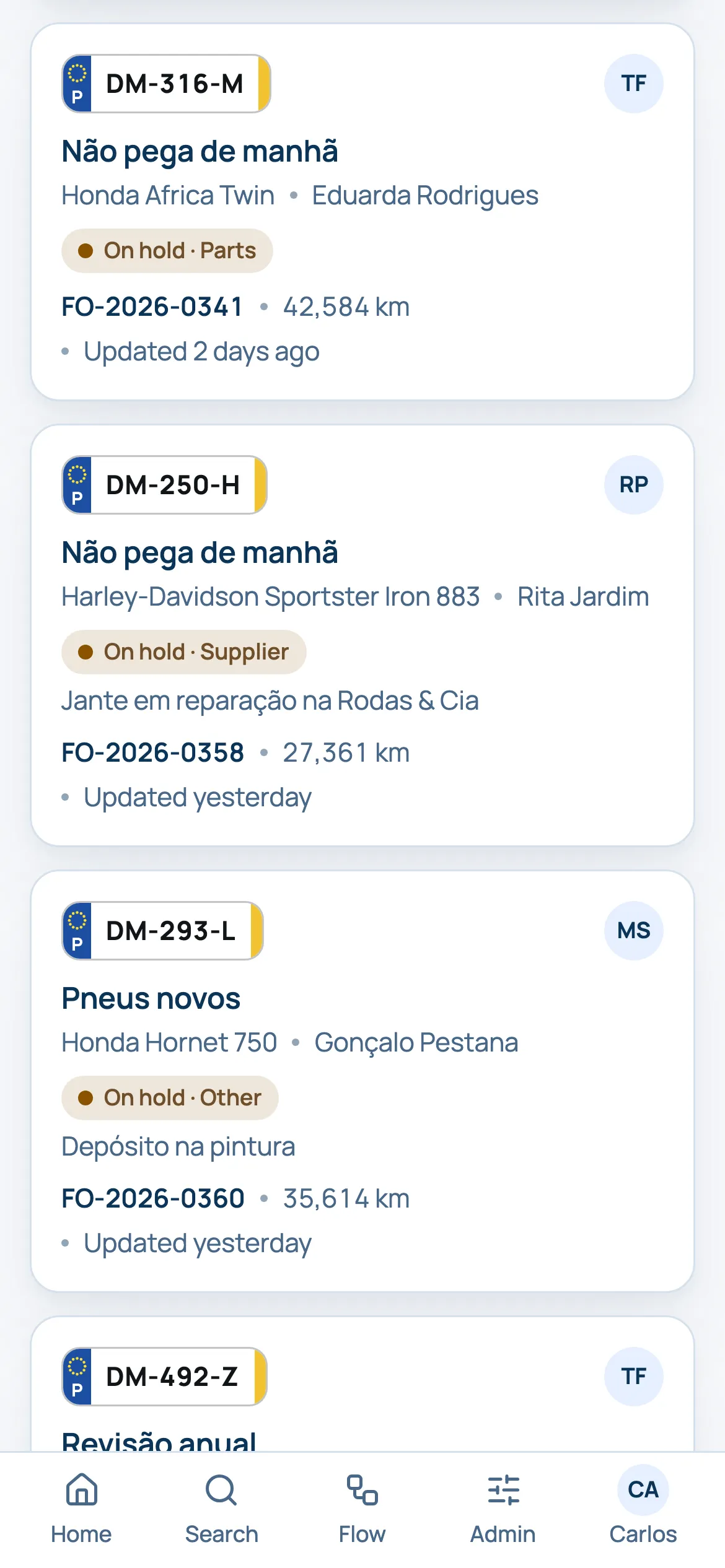
The cards say "On hold · Parts", with the note below, and flag bikes stuck for days. On the home screen, the manager sees the ones waiting for another reason.


A flow that fits your workshop.
This is the flow we start with. If your workshop works differently, we adapt it with you: more or fewer statuses and the waiting reasons that make sense for you.
Fewer questions, fewer forgotten bikes.
One tap to the next step
On the work order, the next status is a button: "Start repair", "Put on hold…", "It’s ready". Tapped the wrong one? Undo it within 8 seconds.
Time stopped in plain sight
Bikes stuck in the same status for days are flagged, with the number of days, on the cards, on the home screen and on the workshop board.
Every status explained
On the Flow screen, tap a status to see what it is and when to use it. Handy for anyone new on the team.
Offline, it keeps going
Changing the status and marking a part as arrived work offline. Everything is sent when the connection comes back.
Frequently asked questions
Can I change the statuses?
Yes, together with us. When we set up your workshop, we adapt the statuses and the waiting reasons to the way you work.
What if the part is not in the catalogue?
Choose "Other" and write what is missing. The manager sees those bikes on the home screen, under "On hold: other".
What if the part is no longer needed?
In the line menu choose "No longer missing", or remove the line from the work order. It is recorded in the order’s history.
See also
Start with your workshop.
30 days free. Leave your details and we’ll call you. There’s no account to create: we set up the workshop and hand over the logins.
Want to look now? Sign in to the demo with the username demo.gestor (the password is the same).Open the demo
Request received.
We’ll call you to set up your workshop.
Development mode: nothing was sent.